
Introduction to subscriptions
With the subscription feature in SWOOP you can get alerts delivered via email. You can choose which dashboard and reports you prefer. This is also an easy way to prepare a custom set of reports to which a link is them emailed to one or more stakeholders.
Create new subscriptions
It is easy to create a new subscription. Just follow these simple steps:
- Click on the ellipsis menu, and choose 'Subscriptions' from the options:
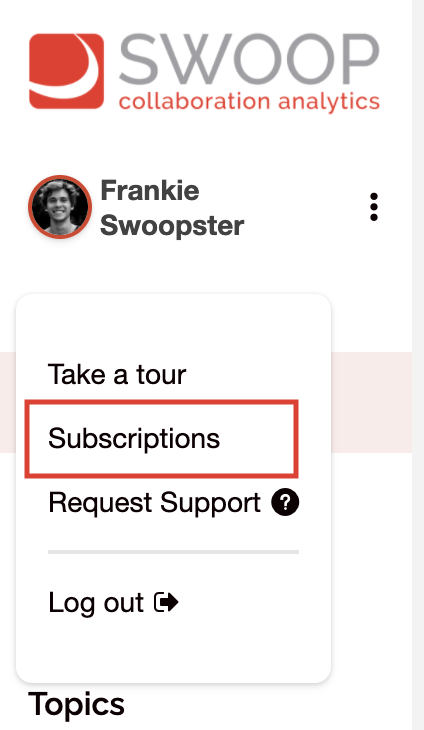
- Complete the 'Add a New Subscription' form and hit save.
You'll be prompted to complete the following:
- Tab to Report (eg Personal, Segment, Enterprise etc)
- Report Period (last 7 days, 30 days etc)
- Subscription Frequency (weekly, monthly etc)
- Arriving at (select the day and hour)
- Recipient (you can add multiple email addresses here, just separate them using a comma)
- Subscription Name (this is also used as the subject line in the email)
- Widgets to report on (choose one or multiple)
Tip: You can use this feature to send SWOOP notifications to - You're done! Sit back and wait for the email to arrive.
The email that is sent out will include the following text (example):
"Hi,
Check out what's happening in [name of group, community or team etc] in the [period chosen]:
- Most Engaging Posts
- Response Rate
[Custom URL to selected reports]
This alert was created by [name of creator] on [date].
You can cancel this subscription by visiting [URL to cancel subscription]
SWOOP Analytics"
Editing, pausing resuming or deleting an existing subscription
This is just as easy as creating one.
- Just click the 'Edit' if you want to edit the existing subscription
- Click 'Pause' to pause it, 'Resume' if you want it to start again or 'Delete' to remove it.
Note: The email that is sent out also includes
